
Aino Web Clipper
Aino Web Clipper turns a selection, readable article, or full page into Markdown and saves it directly to your local Aino Desktop vault. Extraction, editing, preview, and saving all happen on the page you are reading.
Download and install
Install Aino Web Clipper from Chrome Web Store
Chrome users should use the store version to receive updates automatically. For Microsoft Edge or environments without store access, download the Chrome / Edge manual package (ZIP), then follow these steps:
- Download the ZIP and extract it to a folder you will keep.
- Open
chrome://extensionsin Chrome oredge://extensionsin Microsoft Edge. - Enable Developer mode, choose Load unpacked, and select the extracted folder.
- Install and open the latest Aino Desktop, then open a local vault.
- Enable the local service under Settings → Web Clipper.
- Select the Aino icon in the browser toolbar. You can start clipping when the status dot in the lower-left turns green.
The same manual package works with Chrome and Chromium-based Microsoft Edge. Its stable Feishu link stays the same when a new version replaces the file.
The extension connects only to 127.0.0.1 or localhost on your computer.
Three clipping scopes
- Selection keeps only the text you selected on the current page.
- Readable article extracts the main article while removing navigation and unrelated page chrome.
- Full page preserves the complete page structure when the surrounding context matters.
Selection is automatically unavailable when no text is selected. Readable article works best for articles and documentation; full page is useful when lists, page chrome, or surrounding context also matter.
Floating panel or right sidebar
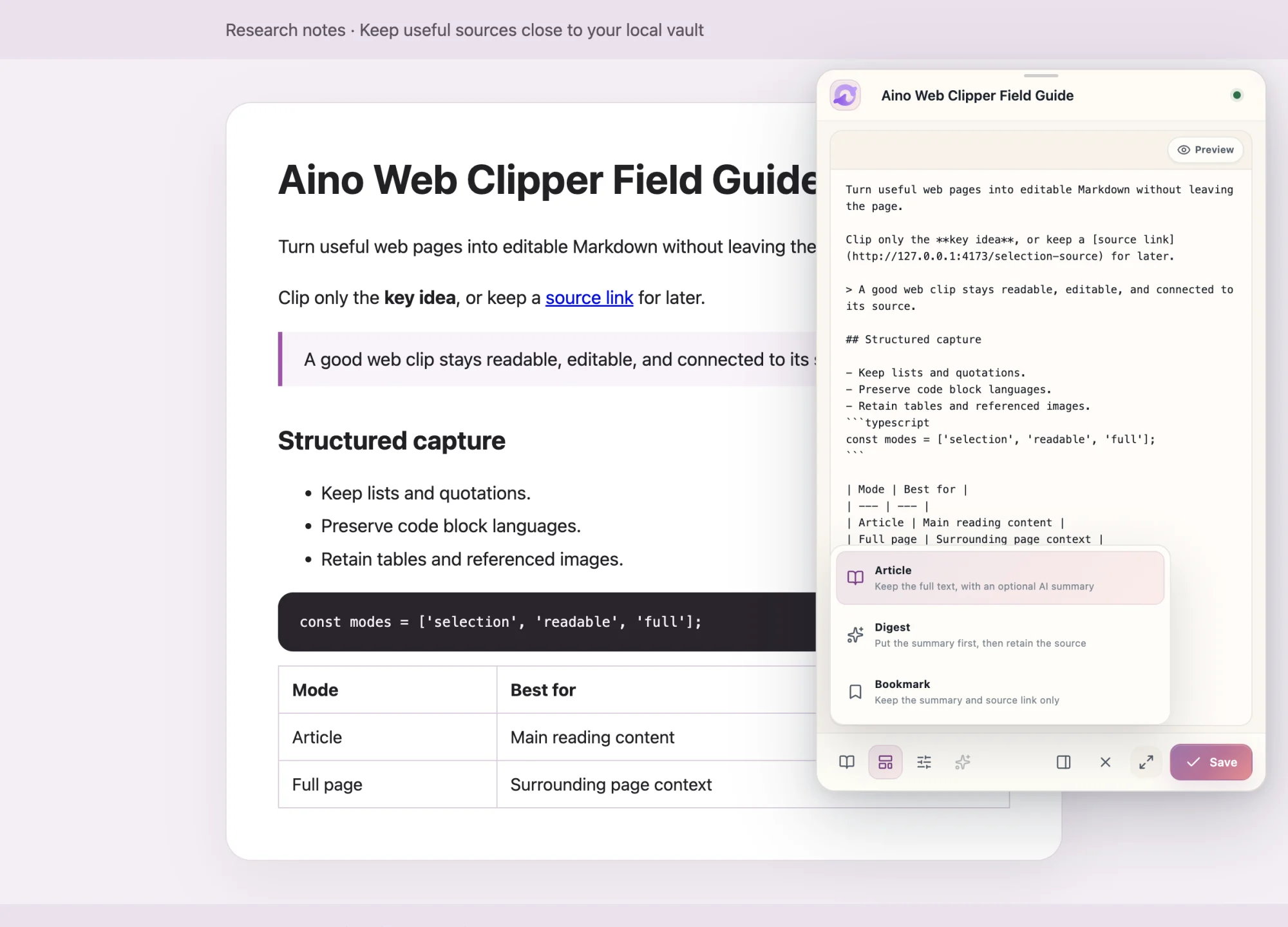
The floating panel is ideal for organizing a clip while you read. Drag its top handle to move it, then resize it freely from any edge or corner. Aino remembers its size, position, and the surface you used last.
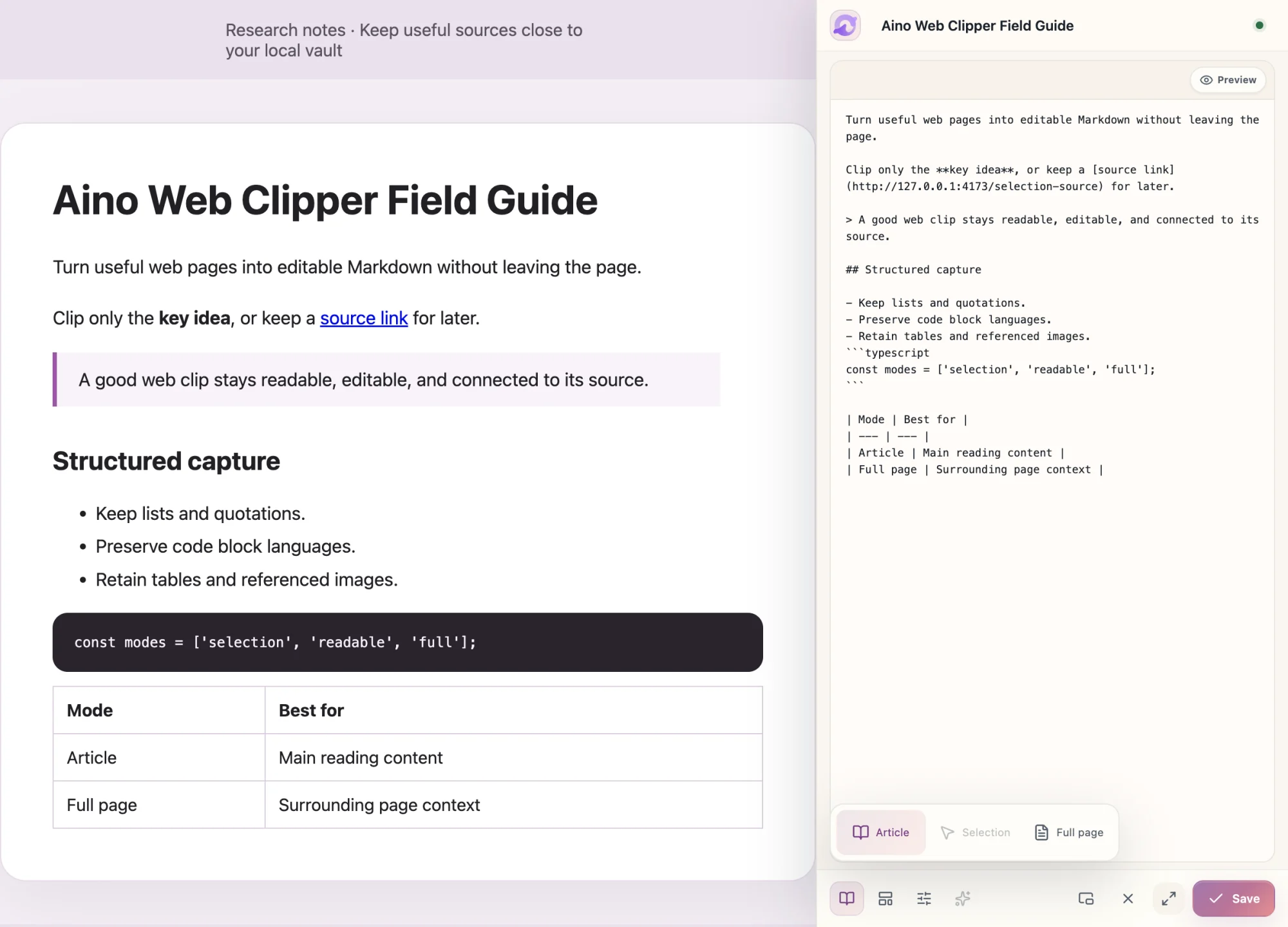
For longer comparisons, use the footer control to dock the clipper in the browser's right sidebar. The page makes room for it, and you can drag the sidebar's left edge to change its width.
Edit and preview Markdown before saving
The content area contains editable Markdown. Use Preview in the upper-right corner to switch between the rendered result and source editing, so you can check headings, links, tables, code blocks, and image references before saving.
Templates, frontmatter, and AI summary
Every saved note can include YAML frontmatter such as source URL, author, publication time, clipping time, tags, and clipping mode. Templates control the destination folder, filename, metadata, and body structure, with quick presets for article, digest, and bookmark workflows.
AI summary is optional. When you request it, Aino Desktop uses the AI model or local tool you configured and inserts the result into the editable Markdown before saving.
After saving
The result bar lets you open the note in Aino Desktop, copy its note link, undo the last clipping action, or retry a failed save. The final file remains standard Markdown that you can edit, search, and connect with backlinks in Aino.
Privacy
The extension reads the current page only after you open it and choose a clipping action. Clipped content is sent to Aino Desktop through the local loopback connection. See the Aino Privacy Policy for data categories, AI summary behavior, and Chrome Web Store Limited Use disclosures.