
AI Apps (Experimental)
AI Apps let you describe a personal tool in natural language and ask AI to generate its interface and logic. The app reads or writes ordinary Markdown notes through a controlled Host SDK. Generated source is validated before it runs in a sandbox.
AI Apps are evolving quickly. If the New App button is missing from the upper-left corner, confirm that your version and activation support the capability, then check the related switch under Settings → Experiments.
Install Four Built-in Apps
Click + New App in the upper-left corner of Aino to start from one of four built-in templates. Their interfaces follow Aino's language plus light and dark themes. System-generated data folders use the same stable English paths in every interface language: Aino Apps is the root, with built-in folders such as Relationship Room, Ebook Library, and Important Choices. This prevents language changes or cross-device sync from creating duplicate folder trees. You can still enter any vault-relative folder or choose an existing folder, including one with a localized name. The app then reads and writes its Markdown data only inside that folder; matching tags elsewhere are not scanned. OPC Cockpit is the exception: it reads an existing official OPC workspace and therefore has no separate data-folder option.
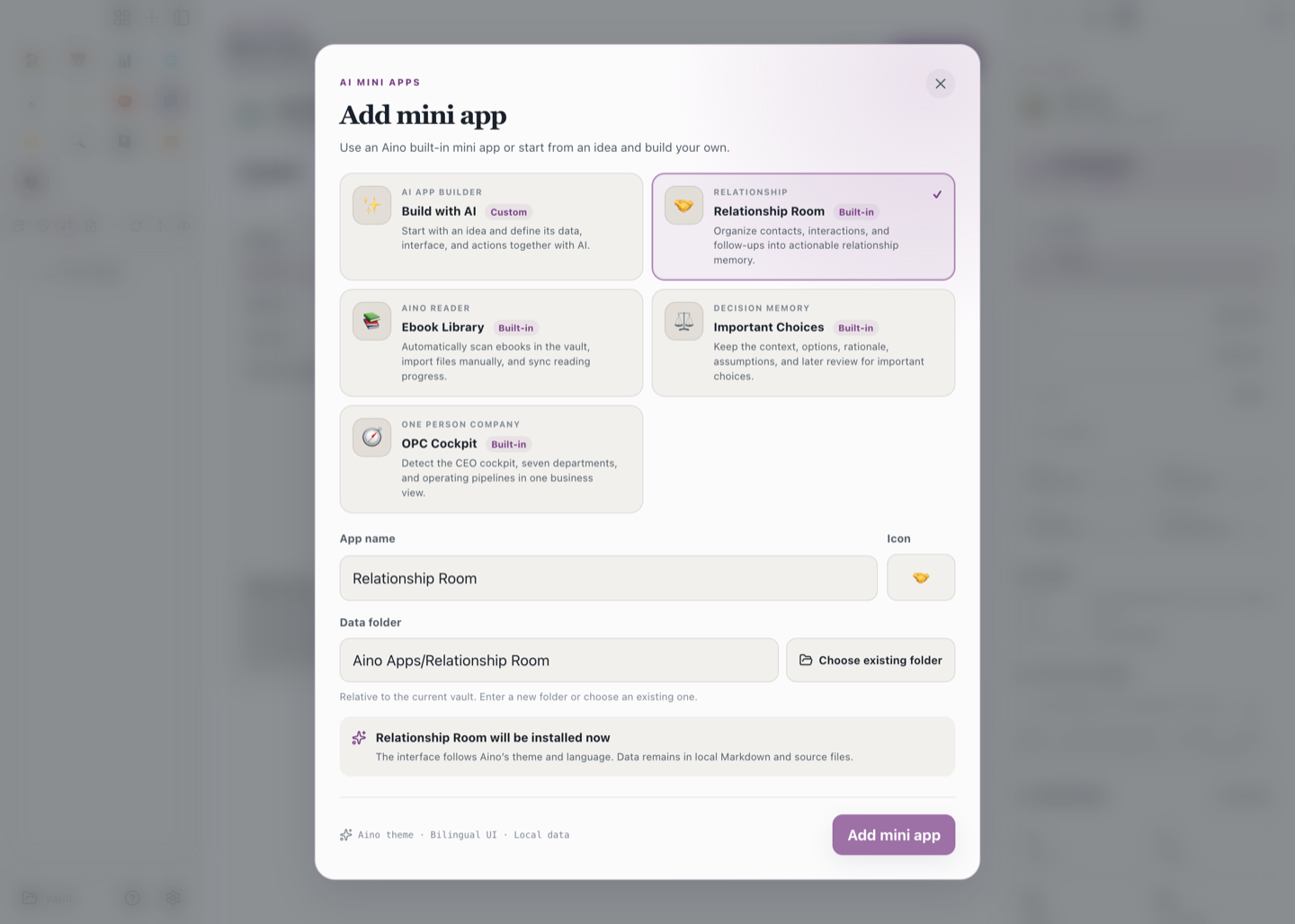
Relationship Room
Turn scattered contact notes into an actionable relationship list. Search by name or organization, see complete contact details, relationship strength, recent activity, and next follow-up dates, and create a contact quickly. The first load shows skeleton animation; later visits render the local cache first and synchronize fresh Markdown data in the background. Interactions and related documents that reference the contact appear in the detail view with links back to their source notes.
Ebook Library
The app scans the vault automatically when it opens. You can rescan at any time or import a file manually. The shelf recognizes only dedicated ebook formats—EPUB, MOBI, AZW, and AZW3—so PDFs, DOCX files, text files, and ordinary Markdown notes are not mixed in. Manual imports are copied to the data folder selected during creation.
Reading position and completion status are stored as Markdown records instead of being locked inside an app database.
Important Choices
Keep a decision's context, options, final choice, reasons, key assumptions, principles, confidence, review date, and review outcome together. The app supports search, status filters, a “Review due” state, and direct editing of existing records. Analyze with AI prefills the right-side chat with the current principles, options, assumptions, and source so you can review the prompt before continuing. You can still open the source Markdown for verification.
OPC Cockpit
Designed for a one-person company using the official OPC structure. It checks key documents, department freshness, the sales pipeline, and pending input, then surfaces today's most important actions, risks, leads, and deliveries with source links. Quick capture goes to 1 输入/收件箱. When you ask AI to update the CEO or a department dashboard, Aino prepares a bounded prompt and waits for confirmation.
Removing a built-in app deletes only its source and runtime logs. It does not delete contacts, ebooks, decisions, or OPC files. AI generation and AI updates still stay behind Host SDK, source validation, and user-confirmation boundaries.
No Template Fits? Create a Blank App
- Click + New App in the upper-left corner of Aino.
- Enter a purpose-focused app name, such as “Reading and Learning Tracker.”
- Pick a recognizable Emoji icon.
- Confirm the data folder. Enter a new folder or click Choose existing folder; the path must stay inside the current vault.
- Click Create Blank App.
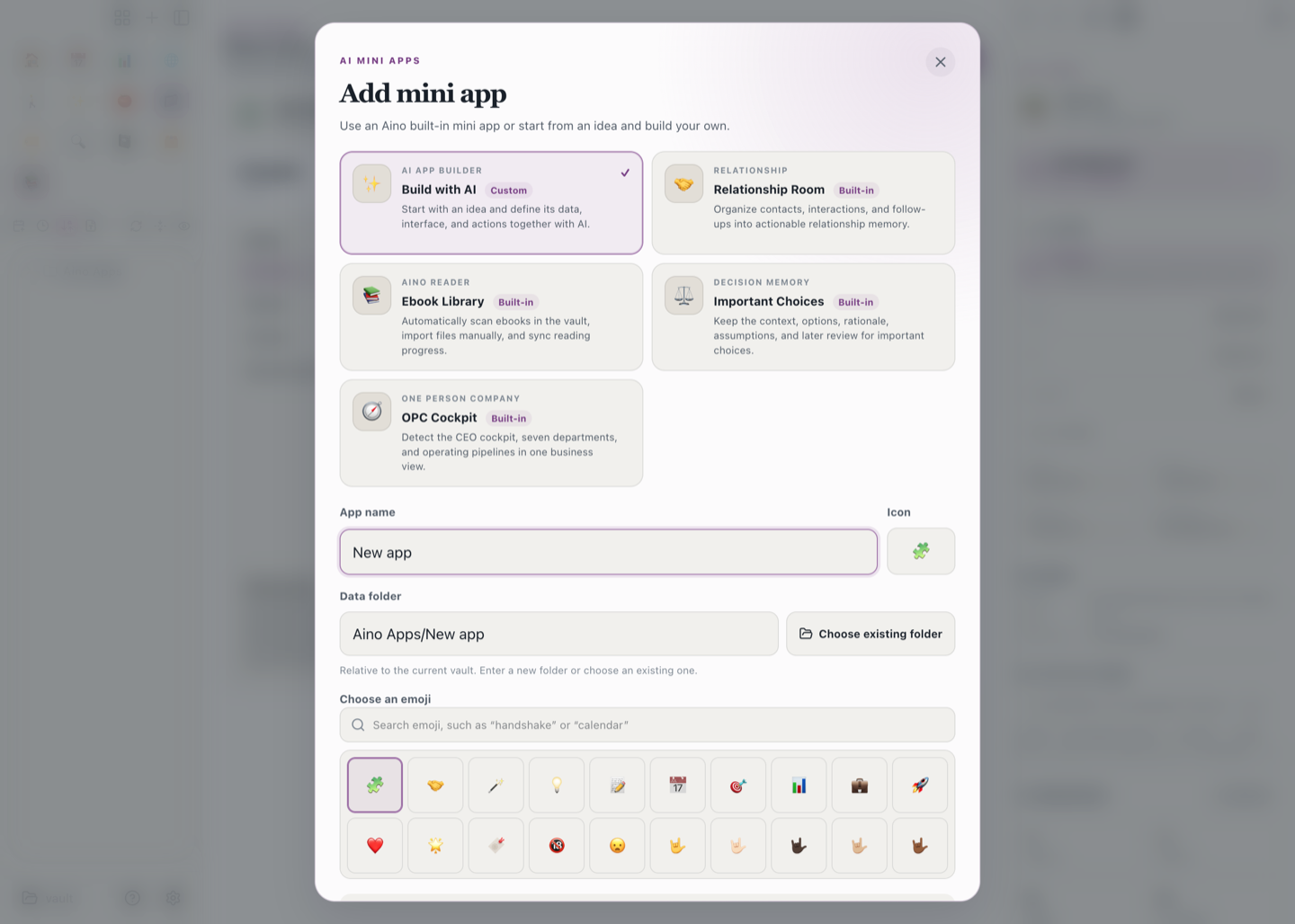
This creates a draft only; it does not generate or write business data yet. Aino then opens the AI App Builder blueprint.
Tell AI What to Build
- Click Build with AI on the right (①).
- Explain the purpose, note tags inside the selected data folder, record fields, and desired actions. For example: “Read notes tagged
#reading, show title, status, and rating, and let me update the reading status.” AI will not change the folder selected during creation. - Answer the Agent's questions about data sources and read/write behavior, then ask it to generate the app.
- Inspect the build flow (②) and safety boundary (③) before loading the generated app.
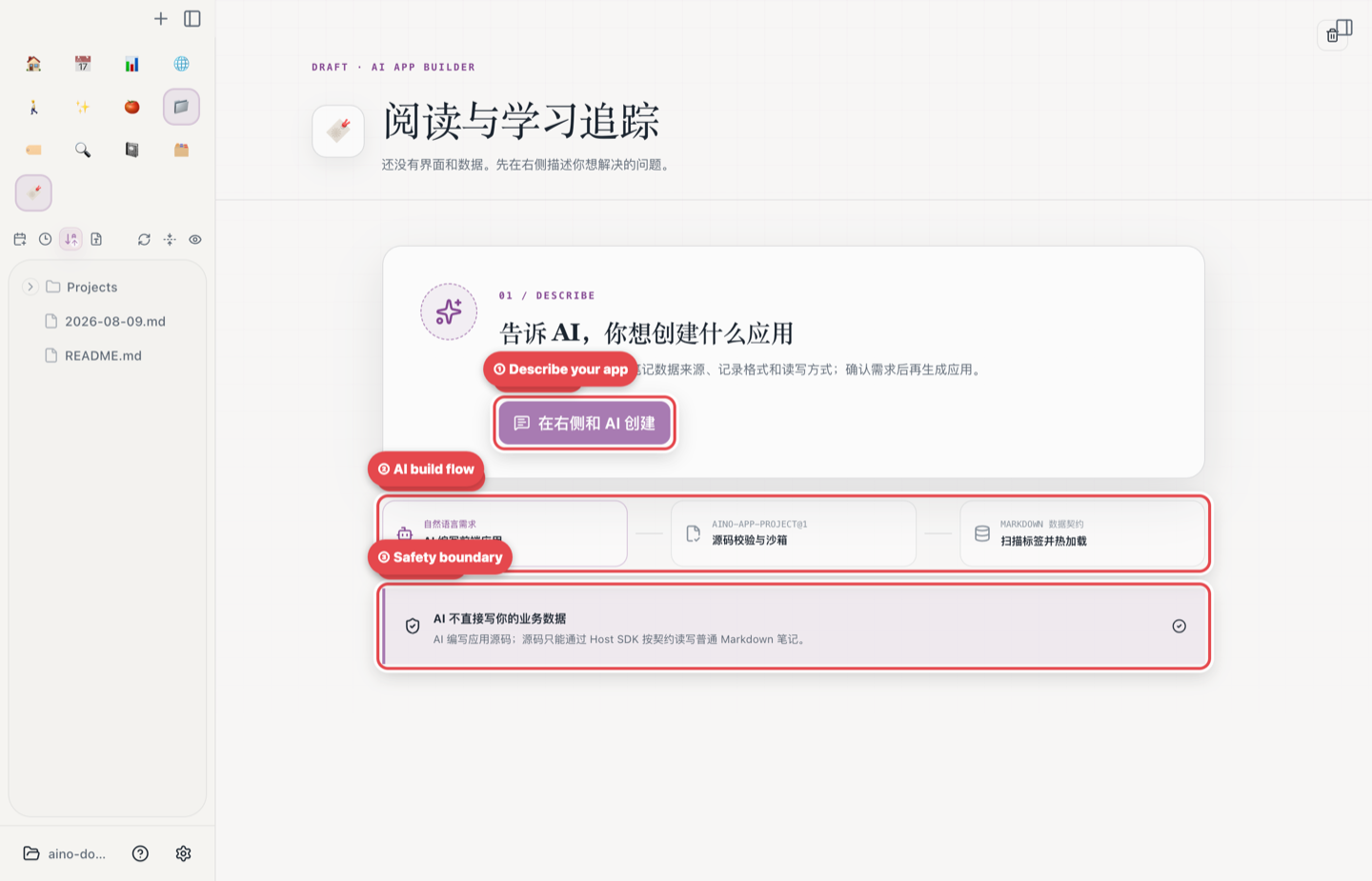
Include These Four Details
Start with one small, explicit workflow. Once the first version reads Markdown correctly, add charts, bulk actions, or more complex interactions. This makes failures much easier to diagnose.
Data and Safety Boundaries
- AI generates the frontend source but cannot bypass the Aino Host SDK to manipulate business data directly.
- Point the data contract at ordinary Markdown notes. Do not store API keys, passwords, or tokens in note fields.
- If validation or loading fails, continue in the same right-side conversation, describe the error, and ask AI to repair the app instead of creating several duplicate drafts.
- Configure an AI provider or local CLI Agent before generating an app. If the app needs vault reads or writes, complete the LifeOS Skill installation prompt as well.
Related
- AI Smart Chat - Configure models, context, and Agent permissions
- AI Intelligent Execution - Understand tool calls and diff review
- LifeOS Skill - Teach AI the vault's note structure and workflows
Try Aino AI now
Put AI to work inside your knowledge base
Try Aino Desktop Pro free for 7 days, open a local Markdown vault, and start with a question, a summary, or one reviewable agent task.
- 7-day free trial
- Local Markdown
- Reviewable results