
Quick Capture
Quick Capture is Aino Desktop’s global capture surface. Whether you are viewing the calendar, editing a note, or talking with AI, you can save a thought or task without leaving the current workflow.
Each capture is saved under Daily Record in today’s journal instead of being locked in a separate database.
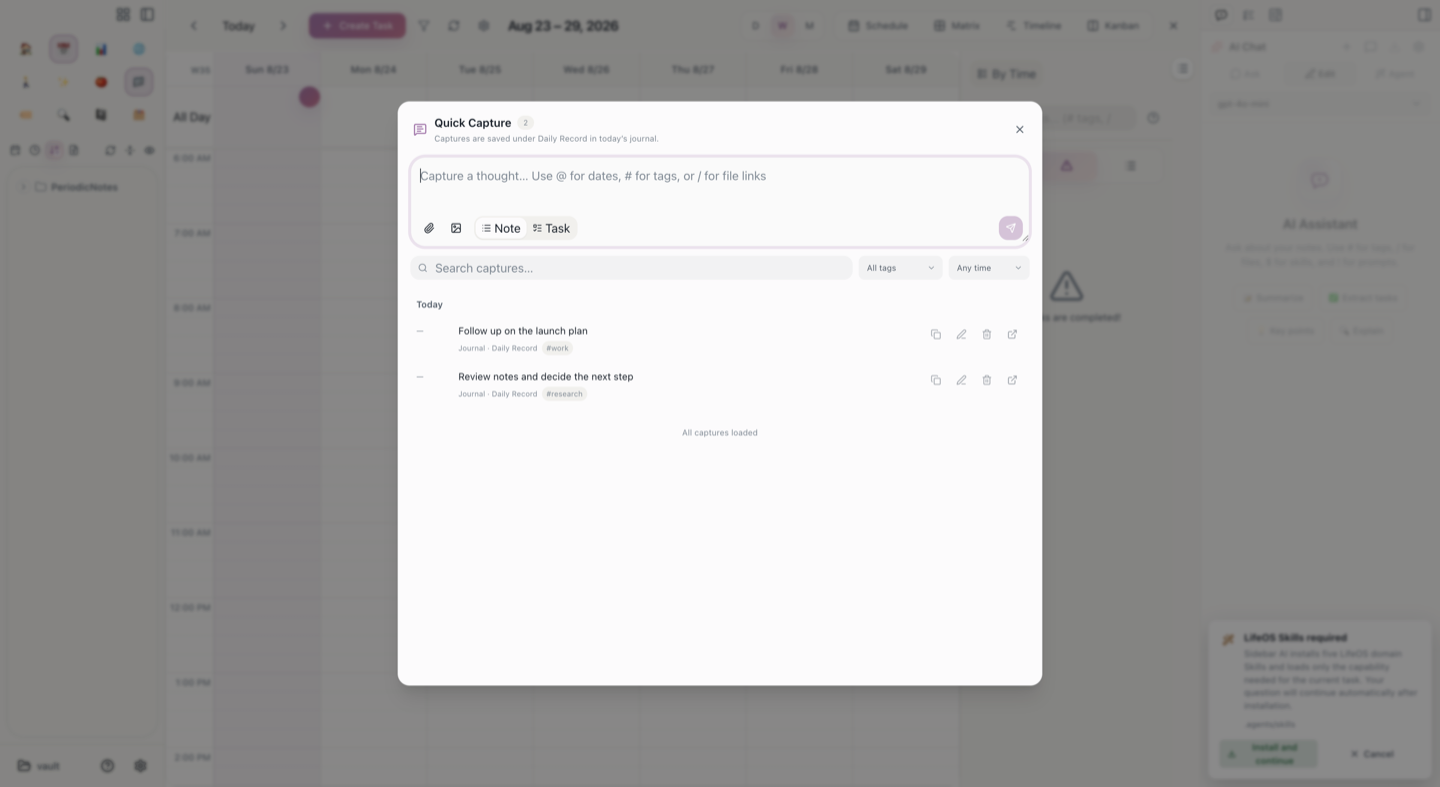
Open Quick Capture
- Click Quick Capture at the lower-right of the main workspace.
- Press
Cmd+T(Ctrl+Ton Windows and Linux), enter>Quick Capture, and press Enter. - Previous names remain searchable:
>flash,>memos, and>闪念all find Open Quick Capture.
Where captures are saved
- A note is written as a list item under Daily Record in today’s journal.
- Switching to Task writes the same input as a task list item.
- Everything remains ordinary Markdown in your vault. Editing or deleting an item in Quick Capture updates its original journal entry.
- Quick Capture does not require an external Memos service.
If today’s journal does not exist, Aino creates it from the current periodic-note settings. If the journal is open with unsaved changes, Aino asks you to save first so it does not overwrite your draft.
Capture with inline shortcuts
- Type
#to choose or complete a tag. - Type
@to use date shortcuts. - Type
/to choose a file and insert a wikilink. - Use the file and image buttons below the composer to insert attachments.
- Switch between Note and Task before saving.
Find and manage earlier captures
The list reads Daily Record entries across your journals and lets you:
- search by keyword;
- filter by tag or date range;
- copy, edit, or delete an entry;
- open the source journal to see the surrounding context;
- scroll to load older entries.
Quick Capture lowers the cost of recording. Weekly and monthly notes can then turn those daily materials into a review. Continue with Periodic Notes and Habit Statistics.