
Task Workspace
Bring tasks from daily notes, projects, and reading notes into one workspace. Tasks stay in their original Markdown files, so you can review and edit them without switching between notes.
Open the Task Workspace
In Aino Desktop, open Calendar from the left sidebar, then select Task at the top.
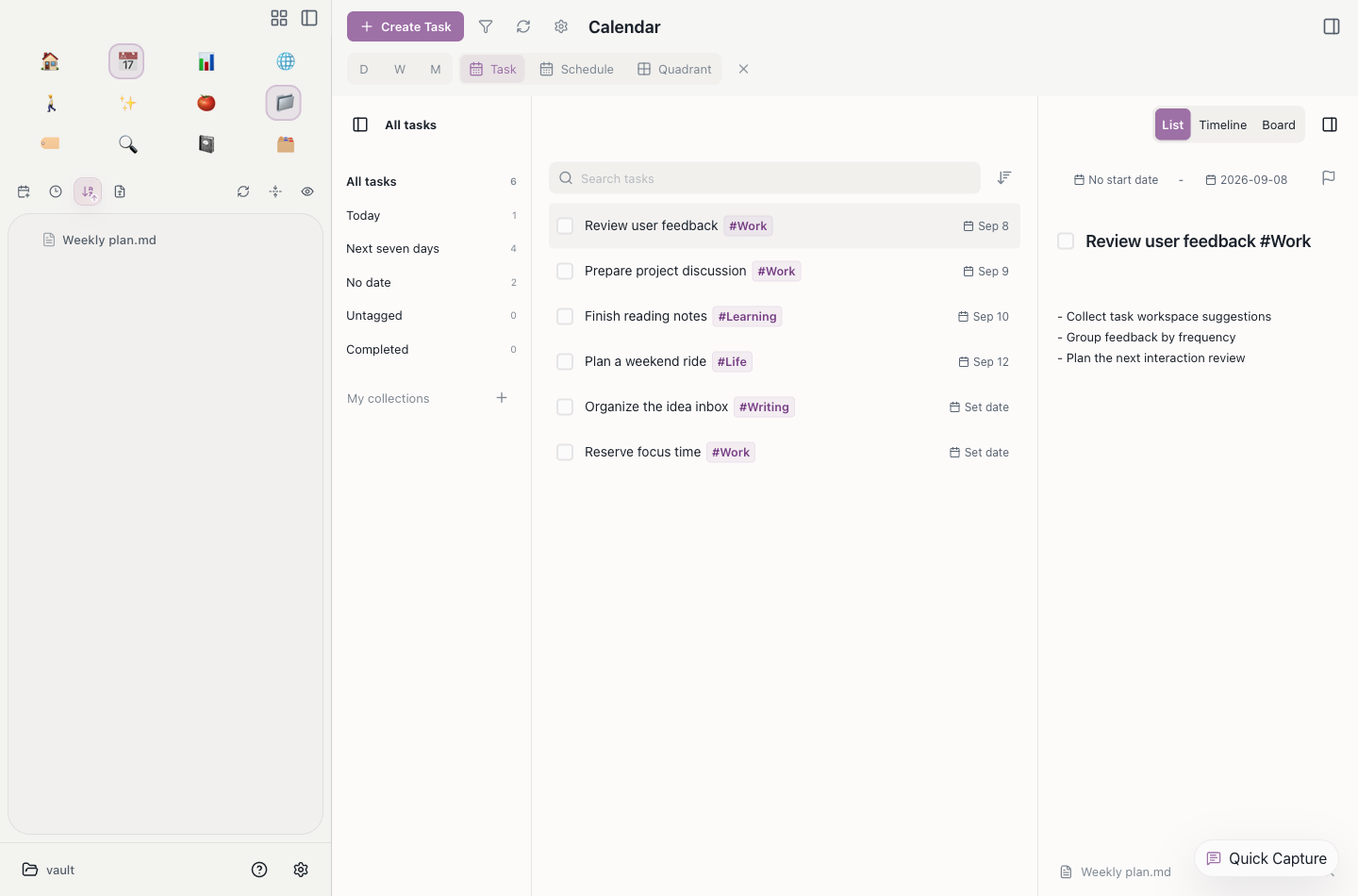
Collections, Tasks, and Details Together
- Collections: Switch between All tasks, Today, Next seven days, No date, Untagged, and Completed, or create your own collections.
- Task list: Work through a simple list. Search for tasks, use the adjacent sort button to change their order, and enter multi-select from a task's context menu.
- Details: Select a task to edit its title, dates, and notes. Open the source note from the bottom of the panel, or collapse details for more browsing space.
The filter button at the top uses the calendar area's global filter. The same conditions remain in place when you switch between tasks, schedule, and other calendar views.
List, Timeline, and Board
Use List / Timeline / Board in the top-right corner to change how the same workspace displays tasks. The active option is highlighted.
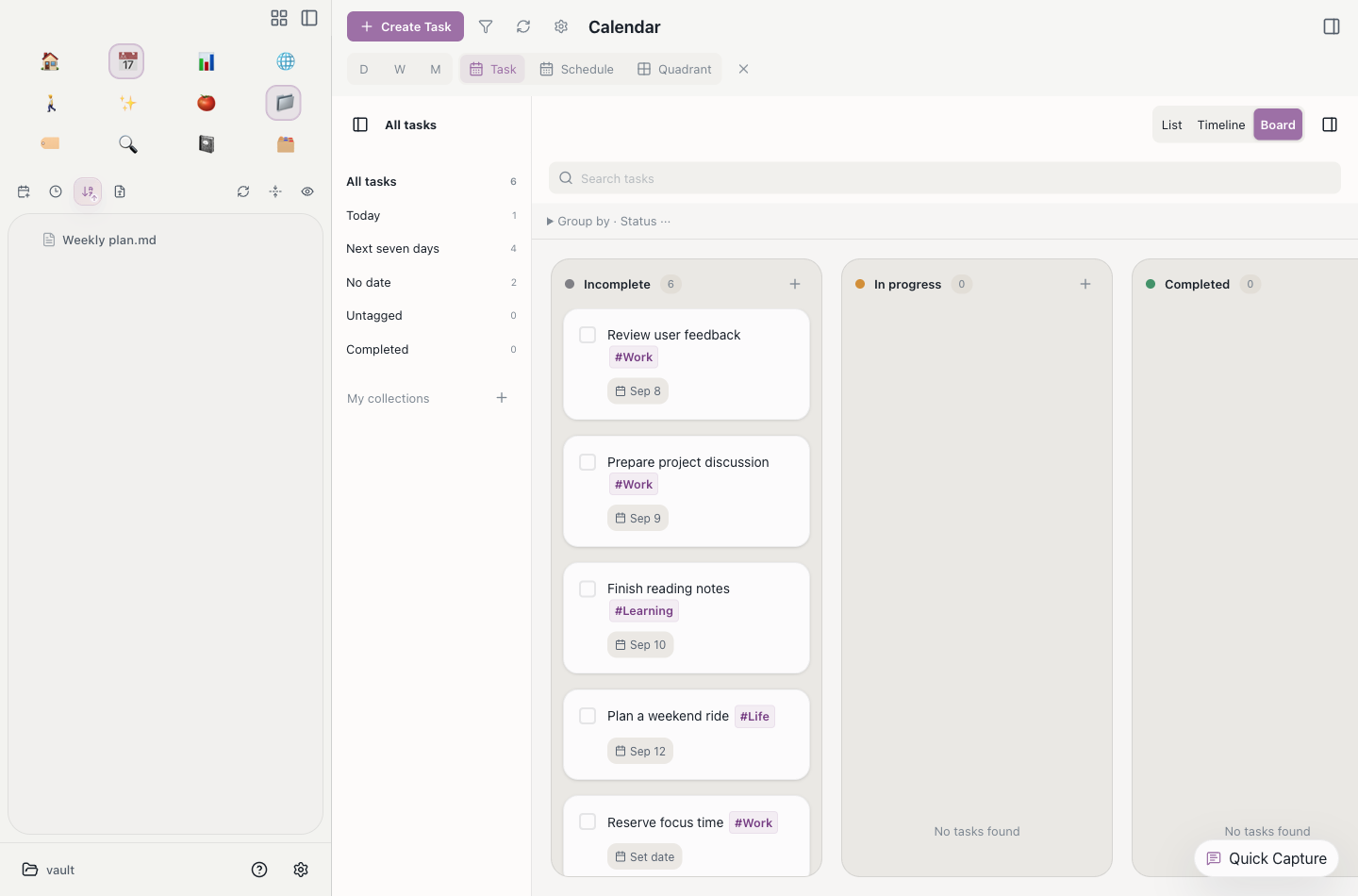
Task and Schedule are separate entries. Use Task to work through your to-dos, Schedule to browse plans by date, and day, week, or month views to plan time on the calendar. Timeline and Board now live inside the task workspace.
Save Notes Under the Original Task
Use the space below the title to record steps, context, and discussion points. Saved notes become indented bullets beneath the original Markdown task:
Checking a task also changes - [ ] to - [x] in the source note. Notes editing applies to local Markdown tasks; editing capabilities for remote calendar items depend on their source.
Create Tasks in Notes
In any note, type:
These tasks automatically appear in the task workspace.
Quick Add with Natural Language
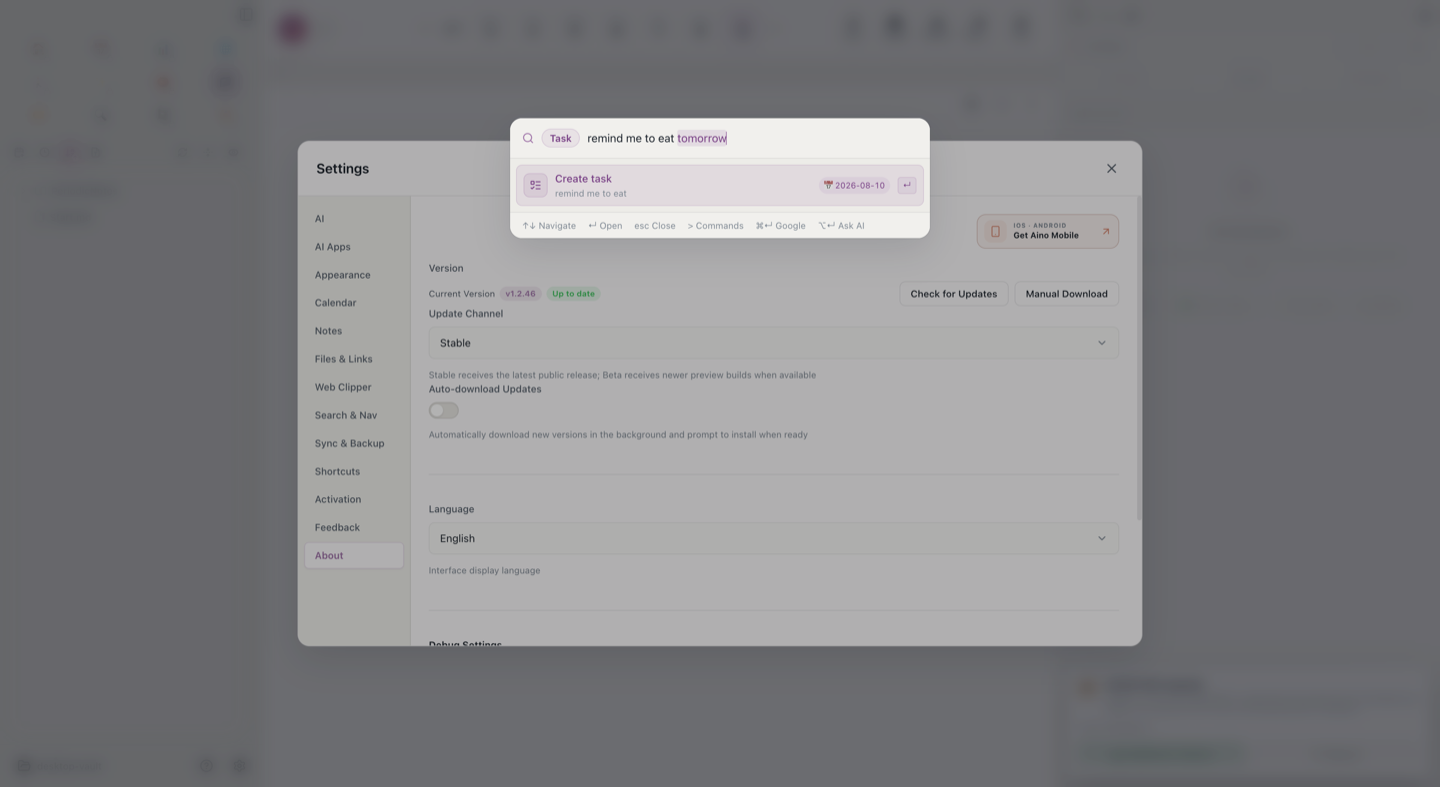
Aino Mobile's task quick-add bar and create form, plus Aino Desktop's Cmd+T command bar and task creation dialogs, all reuse the same Chinese and English rule engine. On Desktop, press Cmd+T, choose Task or type task , then enter:
The recognized word tomorrow is highlighted. Aino keeps readable spacing between recognized metadata and the task body, then stores the task as:
The following common phrases are supported. Chinese and English date phrases can be combined with time and recurrence phrases in one input.
The parser avoids common ambiguities. It does not guess whether 3/6 is month/day or day/month, invalid dates stay in the title, and a bare English month such as May is not parsed unless you write in May. Date words inside #tomorrow or a URL are ignored. A date without a year resolves to the nearest future occurrence. If an input contains only a time, a future time means today and a time that has already passed means tomorrow.
This interaction follows the direction of TickTick's Smart Recognition: highlight recognized dates while typing and remove recognized date text from the saved task title. Aino maintains its own declarative, tested rule catalog and does not claim compatibility with every unpublished TickTick phrase. The words remind me remain part of the task body; notification delivery is still controlled by the task's reminder field.
Use Task Autocomplete
In the Aino Desktop visual editor, place the cursor at the end of a task line and type a trigger. When suggestions appear, use the arrow keys to select one and press Enter; press Esc to close the menu.

After choosing a due, scheduled, or start date, you can enter today, tomorrow, a weekday name, next week, next month, or next year to choose the date. Weekly recurrence also supports every week on mon through every week on sun.
Autocomplete only activates on Markdown task lines. When the same metadata category already exists, Aino does not suggest it again. For example, a task that already has a 📅 due date can still use start to add an independent 🛫 start date.
Aino aligns with the commonly used Obsidian Tasks auto-suggest fields that its task parser already supports. 🆔 id, ⛔ depends on id, and 🏁 on completion are not included yet, so unsupported metadata is not mixed into the task title.
Use the Task Inbox While Reading
The right-side task inbox remains available for a quick review or dragging tasks onto day, week, and month calendars. Open the task workspace for focused searching, filtering, and details editing.
Complete Tasks
Click the checkbox in the inbox to mark a task complete. The - [ ] in the original note automatically becomes - [x].
Tasks with Dates
Add start and due date markers after a task:
🛫 is the start date and 📅 is the due date. The due date determines the task inbox time group.
Edit a Start or Due Date
In the visual editor, click the icon or date text in 🛫 2026-07-14 or 📅 2026-07-20 to open the date picker. A change replaces only the date you clicked; the other date, tags, and block ID remain intact.

Cross-Note Sync
Regardless of where tasks are written -- daily notes, project docs, or reading notes -- they're all collected in the task inbox. Completing a task in the inbox auto-updates the original note.
Recommended workflow: Write today's tasks in your daily note -> Review the task inbox -> Drag important tasks to the calendar -> Complete and check off one by one.
Related
- Calendar -- Drag tasks to schedule time
- Periodic Notes -- Record daily tasks in your journal
- Pomodoro Timer -- Pick a task and start focusing