
Migration, Coexistence, and Choice
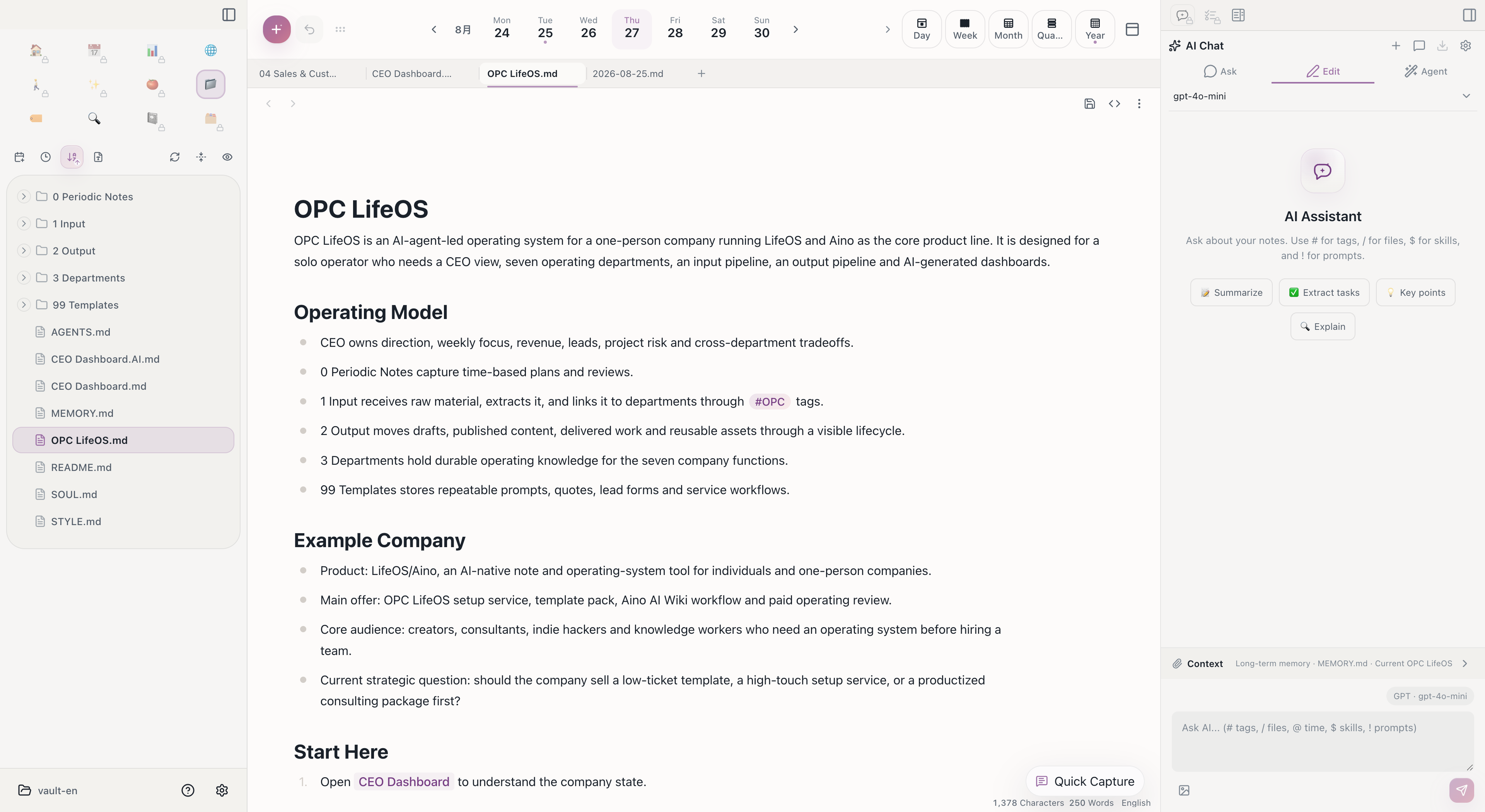
If you are using the Obsidian LifeOS plugin, you can open the same Vault directly in Aino LifeOS. The point is not that you must migrate; it is that you can migrate, coexist, or keep using Obsidian + LifeOS Pro.
If you rely on the Obsidian plugin ecosystem, keep using Obsidian + LifeOS Pro. If you want a more out-of-the-box AI desktop workspace, try Aino. See Obsidian vs Aino.
Compatibility
Aino LifeOS can directly open the core Markdown data in an Obsidian vault:
- Same Markdown file format
- Compatible Wikilink syntax
- Compatible Frontmatter YAML format
- Compatible periodic notes directory structure
- Compatible PARA folder organization
Plugin settings, activation codes, hotkeys, themes, custom CSS, and Obsidian workspace layouts do not migrate with Markdown files. Aino uses its own app settings; review calendar, AI model, sync, and local-agent configuration inside Aino.
Open an Existing Vault
- Open vault -- Directly open your Obsidian vault folder in Aino LifeOS
- Configure AI -- Set up AI models in settings (Aino LifeOS has built-in AI, no plugin dependency)
- Configure calendar -- If using Calendar Pro, reconfigure CalDAV/Google Calendar in settings
Coexistence
Aino LifeOS and Obsidian can open the same vault folder, but two apps writing the same file at once cannot be guaranteed conflict-free.